You’ve installed a content blocker on every browser. The phone in your pocket has a half-dozen apps that show ads anyway. The smart TV in the living room shows ads on the home screen with no user-facing way to turn them off. You can’t install browser extensions on the kid’s tablet. The cleanest fix for all of this is the same one: stop ads at the level of DNS, on a tiny computer that costs $50 and sits next to your router. That’s Pi-hole.
Setup is genuinely 30 minutes. Two gotchas — CGNAT (if your ISP doesn’t give you a real public IP) and IPv6 (which Pi-hole needs to know about explicitly) — derail half the home installations and you’ll save yourself hours by knowing about them up front.
What you need
- Raspberry Pi 4 (any RAM tier; 2 GB is plenty), or a Pi 3, or a Pi Zero 2 W if space is tight. Even an old Pi 3 B+ works.
- A microSD card, at least 8 GB. Class 10 or better.
- The official 5V / 3A USB-C power supply. Underpowered Pi 4s throttle and sometimes corrupt the SD; this is not a place to cheap out.
- An ethernet cable — Pi-hole running on Wi-Fi is unreliable enough that I’d consider it broken.
- Access to your router’s admin interface to change the network’s DNS server setting.
Install — one command
Flash Raspberry Pi OS Lite (Bookworm) onto the SD card with Raspberry Pi Imager, set up SSH and Wi-Fi via the Imager’s advanced options if your network requires Wi-Fi, boot the Pi, SSH in:
# on the Pi
curl -sSL https://install.pi-hole.net | bash
The installer is interactive. Defaults are fine for almost everything. The decisions worth pausing on:
- Upstream DNS provider. Cloudflare or Quad9 are good defaults. Avoid the Google one if you’re trying to reduce who profiles you.
- Block lists. The default Steven Black list is a sensible single starting point — adding more lists at first install creates more false positives. Add more lists later, when you have a working baseline.
- Static IP. Yes, set one. The installer will offer to. The Pi’s local IP must not change, because every device on your network is going to point its DNS at it.
- Web admin interface. Yes, enable it. It’s the entire ops surface — without it you’re flying blind.
At the end the installer prints the admin password. Save it. The web admin lives at http://<pi-ip>/admin.
Pointing your network at it
The “right” way is to set Pi-hole as the DNS server in your router’s DHCP settings. Every device that joins the Wi-Fi will then automatically use it. Steps:
- Log into your router (usually
http://192.168.1.1orhttp://192.168.0.1). - Find DHCP / LAN settings. Look for “DNS Server 1” / “Primary DNS”.
- Set it to the Pi-hole’s IP address. Leave Primary 2 / Secondary blank or set it to the same IP. Do not set it to a public DNS (Cloudflare, Google) as a fallback — devices use whichever DNS responds first, which means half your queries bypass Pi-hole entirely.
- Save. Reboot a phone or laptop to pick up the new DNS via DHCP renewal.
Test: hit nslookup doubleclick.net from your laptop. The response should be 0.0.0.0 or NXDOMAIN. Hit nslookup google.com — that should return a real address. If both work as expected, you’re filtering correctly.
Gotcha #1 — CGNAT
CGNAT (Carrier-Grade NAT) is what your ISP does when they don’t give you a unique public IPv4 address — they share one across many customers. It does NOT affect Pi-hole’s ability to filter ads on your local network. It DOES affect your ability to reach Pi-hole from outside the home (for management, dashboards, sharing the dashboard with family).
Test for CGNAT: visit https://whatismyip.com on a device at home, note the IP. Then SSH into your router (most consumer routers expose this in admin settings) and check the WAN IP. If they don’t match — specifically, if your WAN IP is in the 100.64.0.0/10 or 10.0.0.0/8 range — you’re behind CGNAT.
The fix isn’t on the Pi-hole side; it’s on the connectivity side. Either:
- Tailscale on the Pi.
curl -fsSL https://tailscale.com/install.sh | sh, runsudo tailscale up, and now the Pi is reachable on the tailnet from any of your devices anywhere — admin dashboard included. This is what most people end up doing because it’s free and zero-config. - Cloudflare Tunnel. If you specifically need a public-internet-reachable URL (e.g. shared with a non-technical family member),
cloudflared tunnelcreates one without exposing a port at home. - Ask your ISP for a real IPv4. Often available, sometimes a small monthly fee. Worth it if you’re going to do other self-hosting; less worth it if Pi-hole is the only thing.
Gotcha #2 — IPv6
If your ISP gives you IPv6 (most modern home connections do), every device on your network has both an IPv4 and an IPv6 address. Pi-hole, by default, may only be configured to listen on IPv4. The result: devices that prefer IPv6 (almost every modern phone and laptop) fall back to their IPv6-configured DNS — typically the ISP’s — and bypass Pi-hole entirely.
The fix:
- In the Pi-hole web admin: Settings → DNS → Interface settings, ensure “Listen on all interfaces” is on, and “Permit all origins” is off (default — keep it off, this is your network only).
- Find the Pi’s link-local IPv6 address:
ip -6 addr show | grep inet6on the Pi. Look for thefe80::address. - In your router’s DHCPv6 / IPv6 DNS settings, set the IPv6 DNS server to the Pi’s IPv6 address.
- If your router doesn’t expose an IPv6 DNS setting (some don’t), the most pragmatic fix is to disable IPv6 entirely on your router. Less philosophically pure, much more reliable for ad-blocking.
What to do in the first week
- Watch the dashboard. The “Top Permitted Domains” and “Top Blocked Domains” lists tell you which sites your network actually talks to. Surprising patterns emerge — your TV phoning home every 30 seconds, an old smart speaker contacting a domain you’ve never heard of, an iOS app pinging an analytics endpoint.
- Whitelist as needed. Some legitimate services use ad-style telemetry endpoints. If a site or app is broken, the dashboard’s Tools → Tail pihole.log shows what it just tried to reach. Add specific domains to the whitelist (not the whole list).
- Don’t add too many block lists. A common mistake is to enable a dozen lists at install time. Pi-hole works better with one or two solid lists; more lists mean more false positives and a slower DNS.
Done correctly, the result is silent. Your network feels the same; ads disappear from places browser extensions can’t reach. After a week of running, the dashboard shows that 15-30% of your DNS queries got blocked, and you stop noticing because nothing visibly broke.
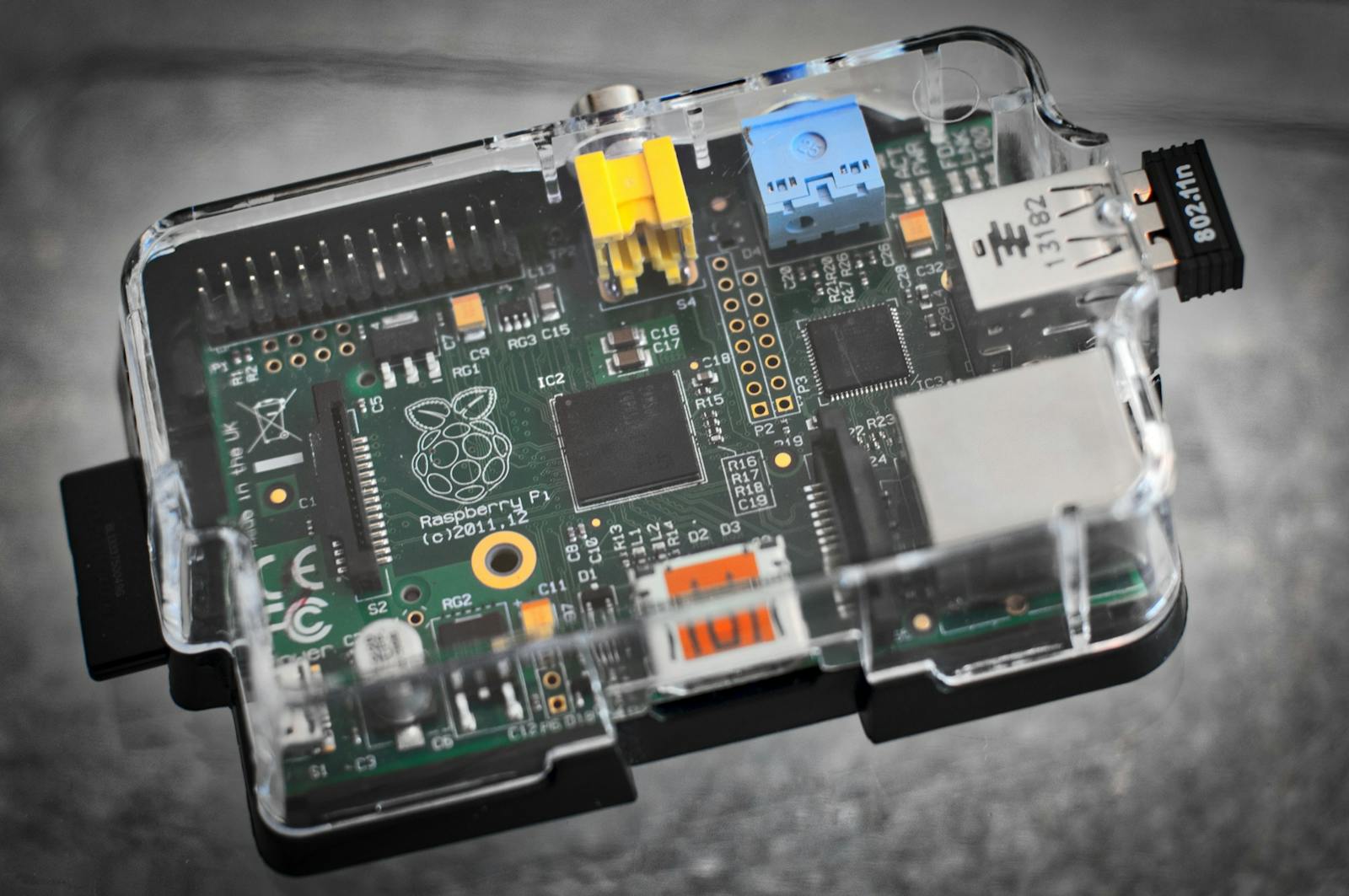
Photo: Raspberry Pi board in clear case by Pixabay on Pexels.