Apple wants you to buy a Time Capsule, an iCloud subscription, or at minimum a Thunderbolt-attached SSD. None of that helps if you already have a Linux box sitting on your network with a few terabytes of free space. Time Machine has supported SMB destinations since macOS 11 — but the Samba config you find on Stack Overflow is almost always wrong, and the failures are silent. Backups appear to start, then quietly stop happening, and you only find out the day your laptop dies.
Here is the smb.conf that actually works against a current macOS — plus the four macOS-side gotchas that bite even with a correct server config.
Why most tutorials fail
Time Machine is not a regular SMB share. It uses a sparsebundle disk image whose internals depend on three things macOS expects from the server:
- Extended attributes (EA / xattr). macOS stores Finder metadata, resource forks, and Time Machine markers as extended attributes. Lose those and you lose the integrity of the bundle.
- POSIX byte-range locking. The sparsebundle is appended to from many concurrent macOS file handles. Without proper locking the bundle corrupts under load.
- Apple’s SMB extensions. Specifically, the
fruit:options that announce Time Machine support and translate Apple-specific SMB dialect features. Samba ships these in thevfs_fruitmodule — but it’s off by default.
Skip any of those and Time Machine will mount the share, prepare the disk, run for an hour, and silently fail with the unhelpful “Backup completed successfully” lie in the menubar.
The smb.conf that works
Tested on Samba 4.17+ (Ubuntu 22.04 and Debian 12) against macOS 14 and 15. Add this to /etc/samba/smb.conf:
[global]
   # Apple SMB extensions — required, not optional
   vfs objects = catia fruit streams_xattr
   fruit:metadata = stream
   fruit:model = MacSamba
   fruit:posix_rename = yes
   fruit:veto_appledouble = no
   fruit:wipe_intentionally_left_blank_rfork = yes
   fruit:delete_empty_adfiles = yes
   fruit:nfs_aces = no

   # Lock semantics that match HFS+/APFS expectations
   posix locking = yes
   strict locking = no

   # Don't let Samba mangle filenames — sparsebundle internals use long names
   mangled names = no

[timemachine]
   path = /srv/timemachine
   valid users = tmuser
   read only = no
   inherit acls = yes
   inherit permissions = yes
   create mask = 0660
   directory mask = 0770

   # The lines that turn this share into a Time Machine target
   fruit:time machine = yes
   fruit:time machine max size = 500G
   ea support = yes
   spotlight = no
The fruit:time machine max size cap matters. Without it, Time Machine assumes infinite space and never expires old backups, which means a single laptop will silently fill the whole share over a year.
Filesystem prep on the Linux side
The destination directory needs to be on a filesystem that supports user extended attributes. ext4 and xfs both do, but ext4 needs user_xattr in the mount options on older kernels — check with:
mount | grep /srv
# look for "user_xattr" in the option list, or no options at all
# (modern kernels enable it by default — but check anyway)

# create a tmuser owned by a dedicated UID, not your normal account
sudo useradd -r -s /usr/sbin/nologin tmuser
sudo install -d -o tmuser -g tmuser -m 0770 /srv/timemachine
sudo smbpasswd -a tmuser

sudo systemctl restart smbd nmbd
One thing worth doing before you point macOS at the share: write a test xattr and read it back. If this fails, Time Machine will fail too:
sudo -u tmuser bash -c '
  cd /srv/timemachine
  touch testfile
  setfattr -n user.test -v hello testfile
  getfattr -n user.test testfile
  rm testfile
'
The four macOS-side gotchas
Even with the server config above, four things on the Mac still trip people up.
- Mount the share over SMB, not AFP. AFP support was removed from macOS years ago, but stale Finder bookmarks still try it. Use
smb://server/timemachineexplicitly in Connect to Server. - Add the share in System Settings → General → Time Machine → Add Backup Disk, not by drag-and-drop. The “Add Backup Disk” path is what triggers Time Machine to write its
com.apple.TimeMachine.SupportedBymarkers correctly. - Disable any third-party SMB acceleration. Some VPN clients and “network booster” extensions intercept SMB traffic and silently drop the SMB3 multichannel frames Time Machine relies on. If backups stall after a few hundred MB, this is usually it.
- Don’t edit the sparsebundle by hand on Linux. Resist the urge to
rmstale backups from the server side to free space. Time Machine’s bundle index is rebuilt slowly and out-of-band; manual deletion makes it think the bundle is corrupted, and the next backup will be a full one.
How to know it’s actually working
The single most useful command on the Mac side is:
tmutil status
log show --predicate 'subsystem == "com.apple.TimeMachine"' --info --last 1h
If tmutil status shows BackupPhase = Copying and a steady Percent climb, you’re fine. If it sits in FindingChanges for more than ten minutes, your xattr / locking config is wrong on the server. Fix the server, run tmutil startbackup --rotate on the Mac, and the next backup will be a fresh full one — but it’ll be reliable.
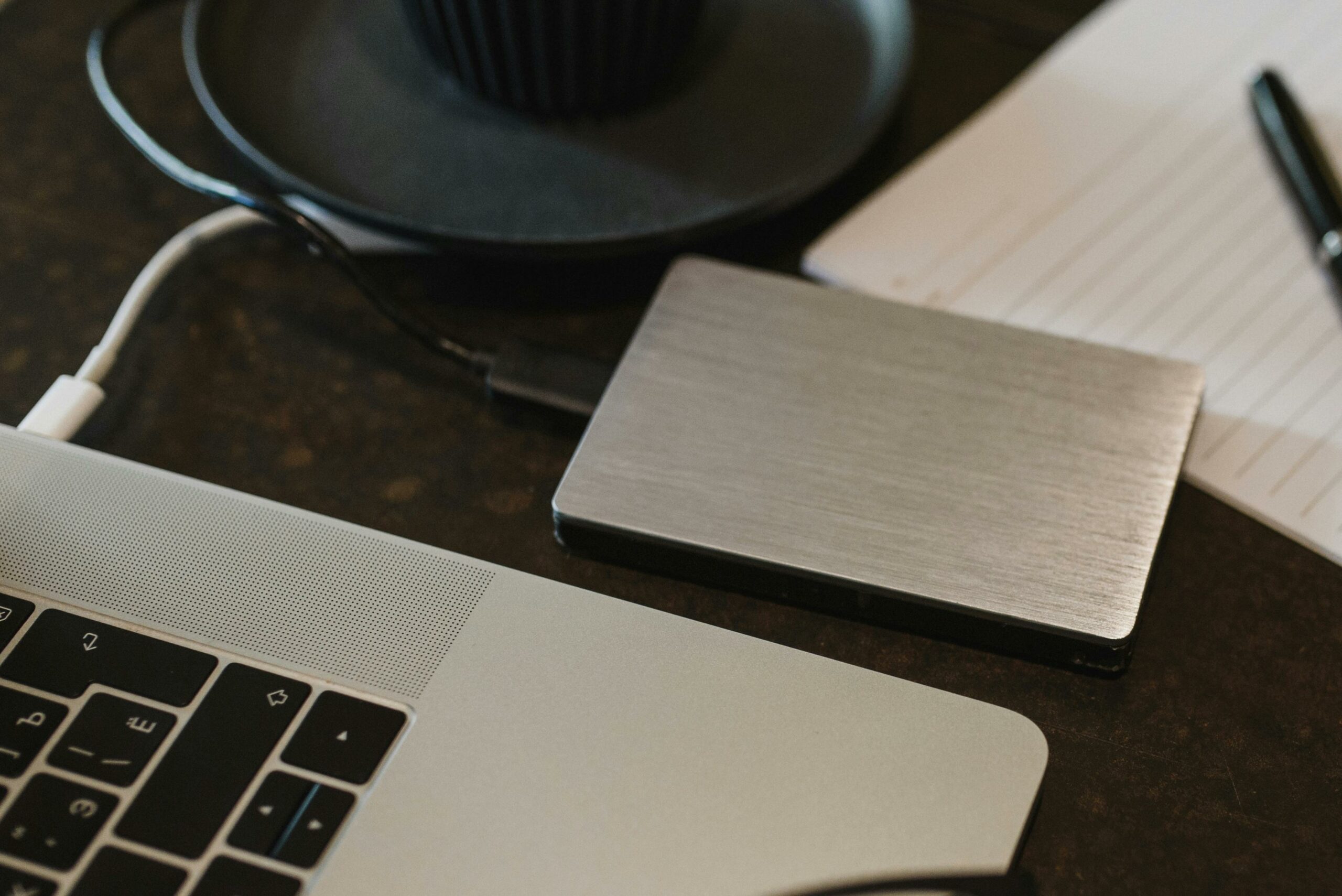
Photo: External drive next to a MacBook by Arina Krasnikova on Pexels.